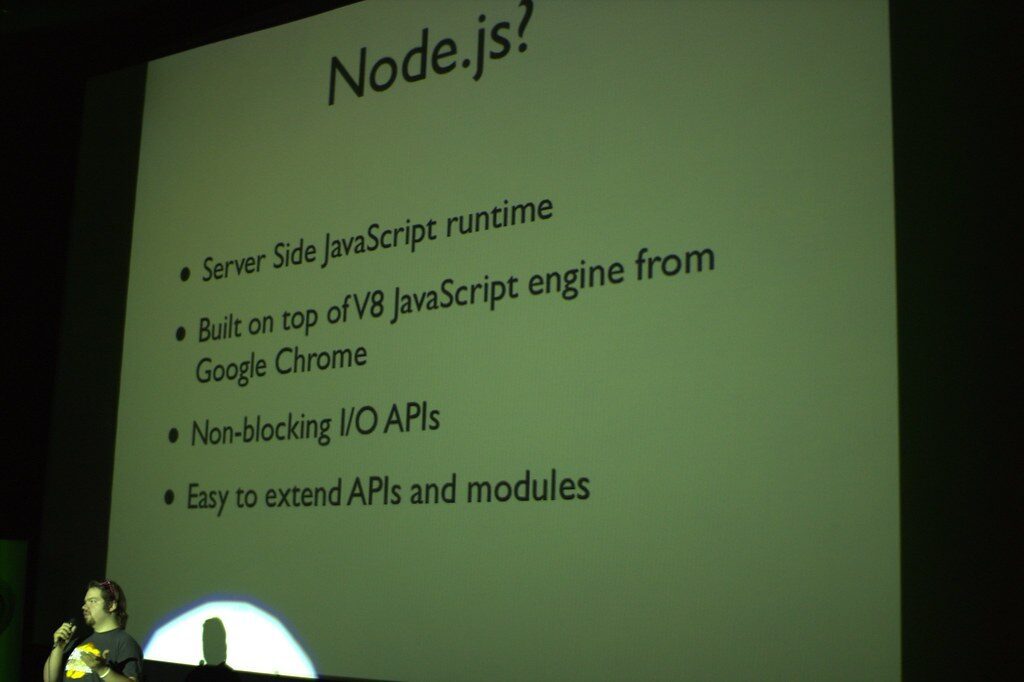
Running modern web applications directly on an ibm i platform has redefined what is possible for developers in enterprise environments. This comprehensive getting started guide covers all the essentials of node.js installation, project initialization, and the key configuration steps needed for a seamless ibm i setup. From preparing the environment using PASE shell or SSH access methods to integrating with services like the IBM HTTP Server and deploying robust web apps, each stage receives clear and practical coverage.
Preparing the ibm i system for node.js
A successful node.js on ibm i setup starts by addressing all prerequisites. Before initiating the node.js installation, it is important to verify that the operating system version is compatible and that essential libraries or support products are present. While many modern systems include these components by default, checking compatibility with the intended node.js versions remains best practice.
System preparation typically involves enabling open source tools support. This can be confirmed through yum package manager usage, which streamlines both installations and updates for critical software. Keeping yum current not only improves flexibility for future development but also helps maintain security as projects evolve.
Installing node.js on ibm i
The process of installing node.js leverages open-source technologies now widely available for enterprise platforms. Installation takes place within the controlled environment of the PASE shell or via remote SSH sessions, providing direct command-line access for efficient deployments and troubleshooting.
Choosing between PASE shell and SSH often depends on convenience and workflow preferences. Remote SSH is favored for managing multiple systems at once, while command line familiarity accelerates the installation process and simplifies dependency management with reusable scripts or templates.
Using yum package manager for installation
The yum package manager provides one of the fastest ways to set up node.js on ibm i. Running a straightforward sequence of commands installs node.js and its dependencies, minimizing manual errors. Ongoing maintenance, such as updating node.js, is just as simple, making this method ideal for long-term or frequently updated projects.
Typical tasks include refreshing package repositories, installing node.js, and confirming the correct version has been deployed. Official documentation offers an up-to-date list of supported packages, ensuring secure and compliant operations throughout the process.
Validating the installation
Once the node.js installation completes, validation checks confirm that everything operates correctly. Running a basic test script verifies the runtime inside ibm i and ensures standard module imports function as expected. If issues arise, focus troubleshooting efforts on path configurations or missing library references.
For deeper debugging, reviewing installation log files provides immediate insights if problems occur. These logs may also reveal optional configuration opportunities to further optimize performance for initial node.js projects on the platform.
Initializing a new node.js project
Launching a node.js application follows familiar patterns seen in other environments. Project initialization includes selecting a directory structure, configuring essential files, and aligning permissions with organizational security policies.
Within the PASE shell or SSH session, commands like ‘npm init’ help establish the project’s framework. This interactive step guides through naming conventions, declaring dependencies, and defining entry points, setting a solid foundation for efficient scaling and growth on ibm i.
Configuring the node.js project
Proper node.js project configuration sets stable parameters for file paths, database connections, and messaging protocols. Editing the ‘package.json’ file within the project directory controls module loading and execution behaviors. Consistent configurations ensure smooth collaboration and allow third-party tools to integrate seamlessly with custom codebases.
Automated scripts are invaluable for creating repeatable environments. Whether cloning staging setups or replicating production issues, having predictable procedures reduces risk and speeds up issue resolution after deployment.
Installing extra dependencies and middleware
Few web applications function effectively without external libraries. Most require additional modules for data handling, web frameworks, or authentication. Leveraging npm within the project root enables quick integration of these dependencies, while careful version tracking prevents upgrade surprises.
Popular middleware options streamline processes from logging to API request parsing. Comprehensive documentation accompanies most Node-based modules, easing selection and integration. Always verify compatibility and address any build issues proactively, utilizing community forums or public GitHub resources tailored for ibm i adjustments.
Integrating node.js with classic ibm i web services
Modern applications often interact with established infrastructure through web servers or specialized plug-ins. Effective integration ensures vital functionality remains accessible, even as technology shifts toward JavaScript-driven stacks.
By adopting standardized interfaces and carefully managing connection settings, organizations maintain legacy system value while gaining agility for new web initiatives powered by node.js.
ibm http server integration
Connecting node.js processes with the IBM HTTP Server unlocks advanced routing, reverse proxy, and load balancing features. The configuration process starts with defining virtual hosts and mapping requests to backend node.js endpoints based on predefined rules. Proper firewall settings facilitate smooth communication between proxies and core application handlers.
Testing integrations typically involves building sample endpoints shared across teams. Fast feedback cycles enable rapid improvement in authentication logic or session-handling routines.
Setting up the fastcgi plug-in
Activating the fastcgi plug-in can enhance connectivity between the IBM HTTP Server and active node.js apps. FastCGI serves as a bridge, supporting simultaneous processing of multiple requests and delivering quicker responses than basic reverse proxy setups.
Configuration requires editing web server settings to point to node.js listeners running in background mode. Attention to port selection, process counts, and timeout values is crucial for handling anticipated workloads. Well-optimized FastCGI integration increases both speed and resilience, especially for high-traffic web services.
Deploying node.js applications on ibm i
Beyond local testing, effective deployment strategies are vital for ongoing project success. Options range from manual rollouts using traditional copy methods to automated pipelines managed by scripting or open-source CI/CD tools. Regardless of approach, it is essential to set proper access levels and monitor error logs closely during initial runs to identify potential bottlenecks or permission issues early.
Specialized tools designed for ibm i environments simplify repeated deployments, lowering risks associated with manual intervention and ensuring consistent builds. Environment variables take care of database connections, security keys, and queue settings, helping guarantee reliable startups wherever the application is deployed.
- Install prerequisites with yum package manager
- Begin node.js installation from PASE shell or via SSH
- Initialize new projects and edit configuration files
- Set up integrations with IBM HTTP Server and fastcgi plug-in
- Deploy, monitor, and iterate on live applications
Following this node.js on ibm i setup guide positions any team to expand its digital presence across established enterprise frameworks and emerging web development practices. Step-by-step engagement ensures operational efficiency and opens new possibilities for delivering rich, interactive web experiences within the trusted ibm i ecosystem.
No responses yet